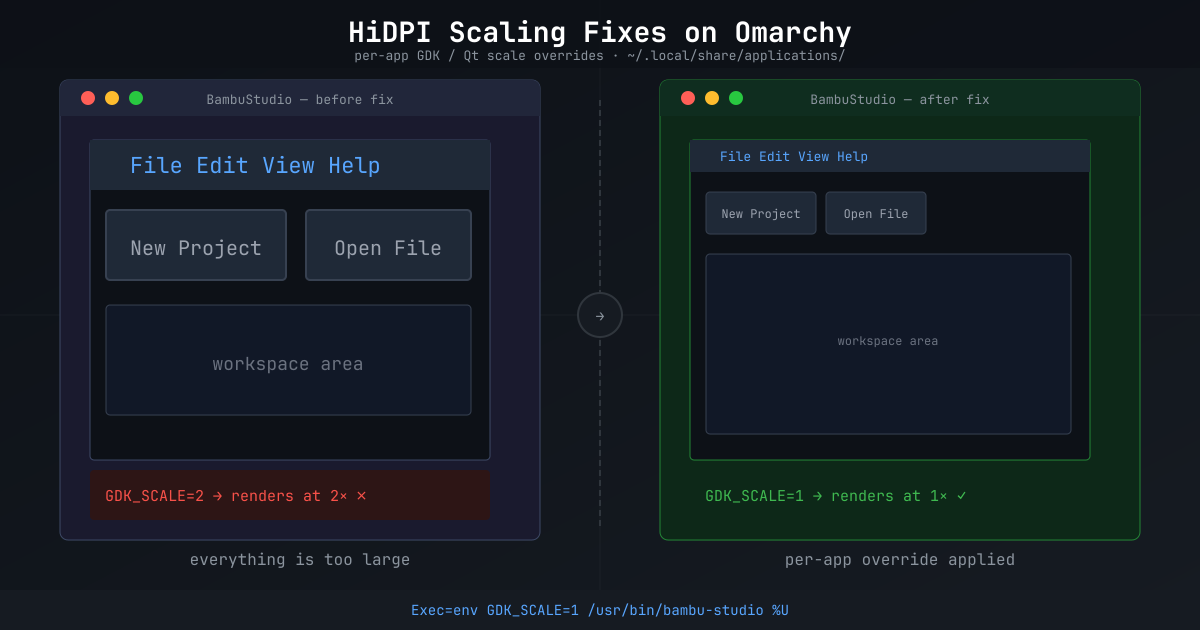
Everything looks sharp. Your fonts are crisp, your terminal is pixel-perfect, and Hyprland is rendering at exactly the right density for your HiDPI display. Then you launch Bambu Studio and it fills half your screen like it thinks your monitor is a billboard.
That’s the GDK_SCALE problem. Omarchy sets GDK_SCALE=2 globally for HiDPI support, and most apps handle it gracefully. But some — especially apps built on wxWidgets or Qt — either don’t understand it or apply it on top of their own scaling logic, ending up twice as large as they should be.
The fix isn’t to turn off global scaling. The fix is to override it per app.
How Desktop File Overrides Work
Linux has a clean mechanism for this. Files in ~/.local/share/applications/ take precedence over their counterparts in /usr/share/applications/. The desktop entry spec lets you prepend environment variables to any app’s Exec= line.
So the approach is: copy the system desktop file to your user override location, edit the Exec= line to cancel out the problematic env var for that specific app, and you’re done. The global scale stays intact for everything else.
One important rule: never edit /usr/share/applications/ directly. Package updates overwrite those files and your fix disappears silently.
Step 1 — Check Whether the App is XWayland or Native Wayland
The right fix depends on how the app talks to the compositor. Check with:
hyprctl clients | grep -A10 -i <appname>
Look for xwayland: 1 (XWayland) or xwayland: 0 (native Wayland). The toolkit tells you which env var to reach for:
| Toolkit | Try first | Alternative |
|---|---|---|
| GTK / wxWidgets | GDK_SCALE=1 |
— |
| Qt | QT_SCALE_FACTOR=0.5 |
QT_FONT_DPI=96 |
| XWayland ignoring both | xrdb -merge <<< "Xft.dpi: 96" in a wrapper script |
— |
Step 2 — Test the Fix From the Terminal First
Before touching any files, verify the override actually works:
env GDK_SCALE=1 /usr/bin/bambu-studio
Launch the app, check if it renders correctly. If it does, you’ve confirmed the env var and the binary path. If it doesn’t, try a different variable from the table above.
Step 3 — Copy the Desktop File to Your Override Location
Find the system desktop file:
ls /usr/share/applications/ | grep -i bambu
Copy it to your user location:
cp /usr/share/applications/BambuStudio.desktop ~/.local/share/applications/
Step 4 — Edit the Exec= Line
Open the file and find the Exec= line:
Exec=/usr/bin/bambu-studio %U
Prepend env GDK_SCALE=1 to it:
Exec=env GDK_SCALE=1 /usr/bin/bambu-studio %U
The %U (or %F, %f, etc.) is a placeholder the desktop environment fills in — keep whatever was there originally.
Apps Fixed So Far
| App | Desktop file | Fix | Why |
|---|---|---|---|
| Bambu Studio | ~/.local/share/applications/BambuStudio.desktop |
Exec=env GDK_SCALE=1 /usr/bin/bambu-studio %U |
wxWidgets/GTK backend — global GDK_SCALE=2 makes it 2× too large |
This table will grow. Every time a new app misbehaves, the fix takes about 90 seconds and gets added here.
Verify It Stuck
After saving, update the desktop database:
update-desktop-database ~/.local/share/applications/
Then launch the app from your application launcher (not the terminal). It should render at the correct size. The terminal launch was just for testing — the override only matters when the app is started through the .desktop entry.
The nice thing about this approach is its surgical precision. You’re not compromising your HiDPI setup for everything — just carving out exceptions for the apps that haven’t figured out Wayland scaling yet. As those apps improve upstream, you can simply delete the override file and fall back to the system default.